
REDRightHand – User guide
REDRightHand is a software application that pulls data from your REDCap project and converts it to tidy, normalized data tables. For more information about REDRightHand, see the main REDRightHand page on this site.
Note: If you haven’t already installed REDRightHand, see the Installation Guide for instructions. Downloading and installing REDRightHand is easy, but it takes several steps to get ready.
If you’ve completed your installation of REDCap successfully, you will see the Main Menu, which looks something like this:
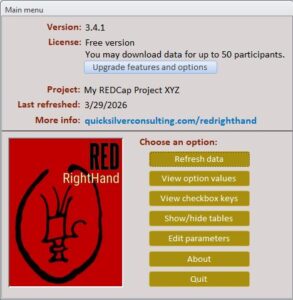
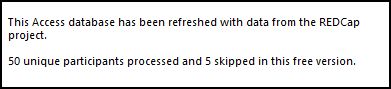
If you haven’t already tried to “Refresh data,” try it now. REDRightHand will work for a few minutes. When the data refresh completes, you will get a message something like the one below:
If REDRightHand doesn’t complete, or if it gives you error messages, see the “Troubleshooting” section below for more information.
Assuming that you have successfully refreshed your data, let’s walk through the things you can now do with REDRightHand.
Where is the data?
The “Data refresh” pulled data from your REDCap project and parsed it to tables within REDRightHand. If you previously had data in those tables, it was overwritten by REDRightHand (as warned in messages when you clicked the “Data refresh”).
If you want to see the data now, click the “Show/hide tables” button on the Main Menu. This button opens and closed the Access Navigation Pane, revealing all the tables, queries etc. that live in REDRightHand. The tables from your REDCap project are listed under the “Tables” heading. They always begin with the “rc_” prefix. (You may add other tables to REDRightHand if you like, but don’t start their names with “rc_” or they might be deleted automatically during a refresh.)
Note that there is one rc_ table for each of the instruments in your REDCap project. (If the table is very wide—that is, having more than about 255 fields—REDRightHand will break it up into several smaller tables. More on this later.)
Of course, if you lack permissions to export an instrument or certain fields (especially PHI) within that table, the relevant table or field in REDRightHand will be blank.
Where is the data dictionary?
The project’s entire data dictionary can be found in the Access table MyDataDictionary. This table is refreshed with the project’s latest dictionary every time you carry out a Data Refresh.
Whose REDCap permissions am I using?
During installation of REDRightHand, you (or someone else) entered a REDCap API token, which acts as a password for that specific person to that specific REDCap project. REDRightHand can only download the data that is permitted to that person. If you need to change the permissions for REDRightHand, you must either a) change the permissions for the person who requested the API token, or b) get a different API token (for a user whose permissions suit your needs) and enter that token, using REDRightHand’s Parameters screen.
Main Menu – “View option values”
If you created radio-button fields or dropdown fields in your REDCap project, the various options for that field are all coded according to your specifications. For example, you might have created a dropdown field named primary_language asking for the participant’s primary language, coded as follows:
2, English
3, Other
9, Not answered
The user is allowed to select only one of the options offered.
Naturally, the data for this field in the table stores only the code values—in this case, 1, 2, 3 or 9.
To recall the meaning of these codes, you don’t need to go back to the REDCap project. Just click “View option values” and scroll down to the section for FieldName primary_language and you’ll see how the coding was entered to REDCap.
In the same way, this option will remind you of the values for Yes/No and True/False fields, as well as the “Complete” fields that REDCap automatically adds to every instrument.
Main Menu – “View checkbox keys”
When you build a checkbox field in REDCap, the process of coding is very similar. However, REDCap allows the user to check any or all of the checkbox options given. Another difference: REDCap automatically creates a separate field for each of the options coded.
Example: Imagine that you have a “current_tobacco_forms” field to collect all the kinds of tobacco the participant currently uses. The user must be able to select any number of options for a given participant. You would create it as a checkbox, with a coding something like this:
2, Cigar
3, Pipe
4, Vape
5, Pouch
6, Other
Since it’s a checkbox field, REDCap actually creates six different fields for your exports, called current_tobacco_forms___1, current_tobacco_forms___2, current_tobacco_forms___3, etc. The field will show a value of 1 if checked and 0 (or blank) if unchecked. However, you may not remember exactly which value you coded as (for example) 3. To find out, click the “View checkbox keys” button and scroll down to the “current_tobacco_forms” section to see how the fields are assigned to values.
Main Menu – “Quit”
Be sure to quit REDRightHand when you’re done working with the data. This is especially important if you’re sharing access to REDRightHand with other users on your team. The Data Refresh requires exclusive access to the database, so everybody else must be logged out of REDRightHand before you can carry out a Data Refresh.
Building queries and reports
You can now use Microsoft Access to build any queries or reports that will be useful for your project. If you don’t change the structure of your REDCap project, the structure of the tables will stay stable from refresh to refresh, and you can re-use your queries and reports as much as you like.
You can build very simple or very sophisticated queries and reports. We’ve seen REDRightHand customized with consort diagrams, follow-up reminders, interim results and much more. Once saved, these queries and reports can be re-run in moments with a quick Data Refresh and then opening the saved object.
Users often like to create a “reports menu” with buttons for favorite queries and reports, to keep the objects cleanly organized.
Another option is to access the tables in REDRightHand through ODBC, Business Intelligence software, or a separate Access database with links to these live tables.
What if the REDCap table is too big?
By “big” we mean number of fields, not number of participants.
REDCap allows instruments with a virtually unlimited number of fields. Microsoft Access, however, has a maximum of 255 fields per table.
So, if a REDCap instrument has more than about 255 fields, it will have to be broken up into multiple Access tables. (The number is approximate, because REDCap and Access count fields in slightly different ways. REDRightHand figures this all out for you.)
If you’re building queries based on one of these very large instruments, you might want to join the pieces together. REDRightHand creates “map tables” to help you with this.
Let’s say you have a rather large REDCap instrument called big_survey with 600 fields. (In most cases, it’s best practice to make much smaller instruments, but unfortunately instruments of this size aren’t uncommon.) REDRightHand will import the data into three smaller tables: rc_big_survey_1, rc_big_survey_2 and rc_big_survey_3.
REDRightHand will also create a map table called maprc_big_survey. Note that this table has three columns, one for each of the tables: rc_big_survey_1ID, rc_big_survey_2ID and rc_big_survey_3ID. In each of these fields you’ll find the ID field of the relevant table. (The ID value in each field is usually, but not always, exactly the same.)
To glue the three tables together in a query, simply add the map table to your query and join each of the three tables to the corresponding field in the map table. (Of course, the output of your query will need to be under 255 fields, or Access will balk.)
Upgrading to the licensed version
The free version of REDRightHand will download and parse data for up to fifty participants. If your study is very small, you may never need to upgrade.
If you’d like to upgrade to the licensed version of REDRightHand, see the upgrade and licensing page. The licensed version does not cap the number of participants you can download.
Known limitations
If the CSV export file is over 2GB, REDRightHand won’t be able to manage it. (The processing time would probably be prohibitive, anyway.)
We have tested REDRightHand with a large number of real and fictitious REDCap projects. At this time, we’re not aware of any limits in REDRightHand as to:
- number of fields
- number of tables
- table names
- field names.
However, there will always be imaginative REDCap builders who manage to add a trick that makes REDRightHand choke up. If you have any questions or issues, please contact us through the main REDRightHand page.
It’s best to be sensible in your REDCap design. Get rid of fields and instruments you don’t need; keep all names brief and descriptive; don’t try to enter vast amounts of text to descriptive fields or headers.
The structure of REDCap exports is extremely inefficient. Exports grow in size roughly proportionally to (number of participants) X (number of fields in the project), and even more so if repeating instruments or events are used. So, if you have a very large number of fields and/or participants, you may have to wait up to twenty minutes or even more for the Data Refresh to complete.
For technical reasons, REDRightHand does have a limit to the option string of radio buttons and dropdowns. If your options use up more than about 1750 characters, you’ll get an error when you try to perform a Data Refresh.
Troubleshooting
Here are some common problems and solutions with REDRightHand. However, if you have any trouble with REDRightHand that isn’t easily solved with these suggestions, please let us know and we’ll help if we can.
Issue: I wasn’t able to carry out a Data Refresh.
If you’ve never done a Data Refresh, the problem is very likely with a) the REDCap URL or b) the REDCap API. Go to the Parameters screen and be sure that you have the right URL for your institution, and be sure that you’ve entered and saved the API token for that goes with that project. Then try again.
Be sure that you have Internet access and be sure that you’re giving the process enough time to complete (wait for the message box from REDRightHand).
If you’re in a shared/networked computing environment, be sure that nobody else has REDRightHand open. Be sure that nobody has changed permissions (for the user assigned to the API token) on the REDCap project.
If you’ve entered the correct REDCap URL and API token, there was probably at least an error message returned when you tried to do the Data Refresh. This may give you the clue you need to solve the problem. If not, save the exact error message and contact us.
Issue: The Data Refresh completed with no errors, but I didn’t get all the data from my REDCap project.
The API token that you saved in REDRightHand was requested by one particular person. Be sure that the user permissions for that one person allow exports for all the data you expected.
Also, be sure that the API token you used is for the most recent version of your REDCap project, not a different (no longer updated) version.
Be sure the “Minimum Completeness” field on your Parameters screen is set correctly. For the maximum data download, select “Incomplete (Import all)”; save and try again.
Issue: I don’t see the REDCap API token/key on my Parameters screen.
This is by design. Since the API token in theory allows anyone to have your access to the REDCap project, it should not be easily visible.
If the Data Refresh works correctly, the API token has been saved. You don’t need to enter anything into this field again unless you want to change the API token you’re using.
Frequently Asked Questions (FAQs)
Can I install REDRightHand on my laptop/desktop?
Yes, if your laptop or desktop is authorized to store any PHI that might be downloaded from the REDCap project.
If the REDCap permissions allow PHI to be exported, and if your laptop or desktop is not meant to store PHI, you will need to install REDCap on a secure server. Contact the IT department of your institution to find out about options.
Can REDRightHand change my REDCap project in any way?
No. The installation version of REDRightHand, whether free or licensed, can only read data from your REDCap project. It cannot change any data or settings on your REDCap.
When do I need to make entries on the Parameters screen?
There are usually only two times: first, when you’re doing the initial set-up of REDRightHand, and second, if and when you want to license the software to remove the 50-participant cap by entering a license key on this screen.
Additionally, you may want to enter a new REDCap API token on this screen if you want to use the permissions associated with a different user.
How do I upgrade REDRightHand if I want to work with data from more than 50 participants?
See our licensing information page. Most often a REDRightHand license is included as part of a package of consulting tasks, but standalone licenses are also available for a fee.
I have a license for REDRightHand and I’d like to share it with a colleague. May I give them my license key?
No, that would be a breach of the license agreement. Your colleague will need to have their own license.
Do I need REDRightHand? I like to download data from REDCap to Stata or R and I don’t see why I should stop.
You’re right! If you’re perfectly happy downloading data from REDCap into Stata, R or a similar product, there’s no reason to stop.
REDRightHand is useful if you want to do SQL-based queries on your data. SQL queries are an extremely efficient and powerful way to get answers from your data with a minimum of effort and error. If you’re combining your REDCap data with data from another REDCap project, and especially if you’re merging it with data from a data warehouse or EHR system, SQL is usually the way to go. But you can accomplish most or all of these tasks with other systems if you’re adept.
Do I need REDRightHand? My REDCap project is very simple. I don’t use the longitudinal features or repeating instruments/events, and I have a small number of fields (well under 255).
With a REDCap project that is this simple, you’re in luck. Your standard exports from REDCap are already in a tidy, normalized form. If you want to use this export in Access, you could just import it as a new table.
However, there are some features in REDRightHand that you might find helpful all the same. The one-click Data Refresh (via API) is handy, and so are the buttons for Option Values and Checkbox Keys.